The Ultimate Guide to Editing Your Instagram Bio on iPhone
Your Instagram bio is your digital storefront, your elevator pitch, and your first impression all rolled into one. For millions of creators, businesses, and everyday users, the iPhone is the primary command center for managing their social media presence. However, navigating the iOS Instagram interface to craft the perfect profile can sometimes feel restrictive if you do not know the hidden formatting tricks and optimization strategies. In this curated listicle collection, we break down exactly how to edit your Instagram bio on iPhone, providing you with actionable steps, formatting hacks, and expert advice to ensure your profile stands out in a crowded feed.
Whether you are looking to showcase your personal brand, drive traffic to your latest project, or simply curate an aesthetic vibe, mastering the iOS editing tools is crucial. We have compiled the definitive collection of steps, hacks, mistakes to avoid, and tools to use, ensuring your profile is fully optimized for both human readers and the Instagram search algorithm. Let us dive into the essential steps to transform your iPhone Instagram profile into a conversion-driving masterpiece.
7 Essential Steps to Edit Your Instagram Bio on iPhone
Editing your bio on an iPhone requires a strategic approach. The iOS app offers specific menus and options that differ slightly from the desktop experience. Follow these seven curated steps to ensure every character counts.
Step 1: Accessing the Edit Profile Menu on iOS
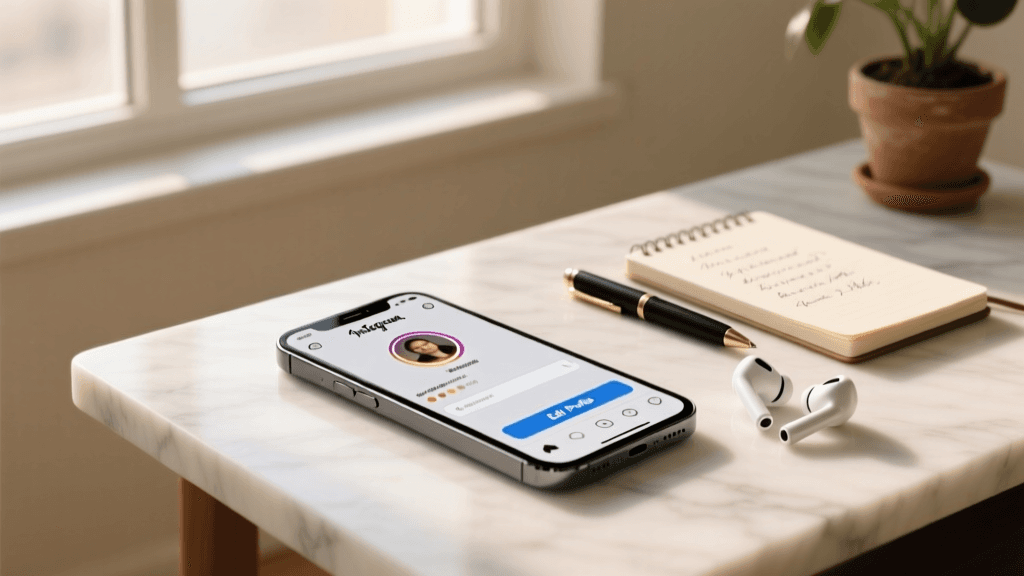
The first step in your bio optimization journey is navigating to the correct menu. Open the Instagram app on your iPhone and tap your profile picture icon located in the bottom right corner of the screen. Once on your profile page, look for the Edit Profile button situated directly beneath your bio and follower count. Tapping this button opens the comprehensive editing dashboard where all your profile information is housed. This is your control center for personal branding, and familiarizing yourself with its layout is the foundation of a great profile.
Step 2: Optimizing the Name Field for Search
Many users confuse their 'Username' (handle) with their 'Name' field. The Name field is one of the most powerful SEO tools on Instagram. When learning how to write an Instagram bio that ranks, you must include relevant keywords in this space. If you are a fitness coach, do not just put your name; put 'Jane Doe | Fitness & Nutrition Coach'. The Instagram search algorithm heavily weighs the Name field when users search for specific services or niches. Use the pipe symbol (|) or a bullet point to separate your actual name from your descriptive keywords, keeping it clean and readable on smaller iPhone screens.
Step 3: Crafting the 150-Character Description
The core of your profile is the bio description, strictly limited to 150 characters. On an iPhone, typing out a compelling narrative within this constraint requires precision. Start with a clear value proposition: who are you, and what do you do? Follow this with a touch of personality or a unique selling point. If you are struggling to find the right words, consider exploring a minimalist approach, where every single word carries weight and unnecessary fluff is eliminated. Use line breaks to separate ideas, making the text easily scannable for mobile users scrolling through their feeds.
Step 4: Configuring Contact Options & Action Buttons
If you are operating a Professional or Creator account, the iPhone app allows you to add dedicated contact buttons. In the Edit Profile menu, scroll down to Contact Options. Here, you can input your business email, phone number, and physical address. These details do not count toward your 150-character bio limit, which is a massive advantage. By moving your contact information to these dedicated buttons, you free up valuable space in your main bio for your core message and call-to-action. Ensure your email address is accurate, as iOS users can tap this button to instantly open their Apple Mail app.
Step 5: Managing Your Link in Bio
The link in bio is your primary bridge between Instagram and the rest of your digital ecosystem. In the Edit Profile menu, tap on Links. Instagram now allows you to add up to five external links, but strategy is key. Place your most important, highest-converting link at the very top, as this is the one that will be most visible to your audience. Use the title feature to give your link a descriptive name, such as 'Shop the New Collection' or 'Read the Latest Blog Post'. This clarity helps iPhone users know exactly what to expect before they tap, significantly improving your click-through rate.
Step 6: Uploading a High-Quality Profile Picture
While technically separate from the text bio, your profile picture is an integral part of your bio's visual impact. Tap your current profile picture at the top of the Edit Profile screen. You can choose to take a new photo using your iPhone's camera or select an existing high-resolution image from your Photos app. Ensure the image is well-lit, centered, and recognizable even when shrunk down to a tiny circle in the comments section. For businesses, a crisp logo is ideal; for personal brands, a clear, smiling headshot works best. Avoid busy backgrounds that clutter the visual space on mobile screens.
Step 7: Saving, Reviewing, & A/B Testing
Once you have meticulously crafted your bio, tap the Done button in the top right corner of your iPhone screen to save your changes. Do not skip the review phase. Immediately visit your profile as a regular user would to see how your bio looks in the wild. Check for awkward line breaks, truncated text, or broken links. To truly optimize, engage in A/B testing. Change your call-to-action or your value proposition every few weeks and monitor your profile visit and link click analytics to see which version resonates most with your audience.
5 Formatting Hacks for iPhone Users
The iOS keyboard and Instagram's mobile text editor can be notoriously stubborn when it comes to formatting. Here is a curated list of five hacks to bypass these limitations and create a visually stunning bio.
Hack 1: The Apple Notes Line Break Trick
One of the most common frustrations for iPhone users is Instagram collapsing line breaks, turning a beautifully formatted bio into a single, unreadable block of text. The most reliable workaround is to draft your bio in the native Apple Notes app first. Type out your bio, using the return key to create distinct paragraphs and bullet points. Once you are satisfied, highlight the text, tap 'Copy', and then paste it directly into the Instagram bio field. This method forces the Instagram app to recognize and retain the hidden formatting characters that create clean line breaks.
Hack 2: Strategic Emoji Placement
Emojis are not just decorative; they are functional tools for breaking up text and drawing the eye. On an iPhone, the emoji keyboard is easily accessible, but you must use them strategically. Use emojis as bullet points at the start of each line to create a vertical list that is easy to read on narrow mobile screens. For example, use a camera emoji for photography services, a globe for travel, or a shopping bag for e-commerce. Keep them consistent in style and color to maintain a cohesive aesthetic that aligns with your brand identity.
Hack 3: Using Invisible Characters for Spacing
Sometimes, you want extra space between lines, but Instagram strips out multiple empty returns. To create breathing room in your bio, use an invisible character. You can find these by searching online for 'invisible space character' and copying the blank space between the brackets. Paste this invisible character onto a blank line in your Apple Notes draft before copying it over to Instagram. This tricks the app into maintaining the empty line, giving your bio a clean, spacious look that is highly valued in minimalist design.
Hack 4: Font Generators & Accessibility Warnings
Third-party font generator websites allow you to type in your text and copy it in various stylized fonts, such as cursive, typewriter, or bold sans-serif. While pasting these into your iPhone bio can make it stand out, you must exercise extreme caution. Screen readers used by visually impaired individuals often cannot read these custom Unicode characters, rendering your bio inaccessible. Furthermore, Instagram's search algorithm cannot index these fonts, which hurts your SEO. If you must use them, limit them to a single word or your name, and keep your core value proposition in standard, readable text.
Hack 5: Structuring with Vertical Bars & Bullets
If you prefer not to use emojis, vertical bars (|) and standard bullet points (•) are excellent alternatives for structuring information horizontally. This is particularly useful for the Name field or a very short bio. For example: 'Writer | Traveler | Coffee Enthusiast'. The iOS keyboard hides the bullet point character slightly deeper in the symbols menu, so you may want to copy and paste it from a notes file for quick access. This horizontal structuring saves valuable vertical space, allowing you to fit more information into the 150-character limit without making the bio look cluttered.
4 Common iPhone Bio Editing Mistakes to Avoid
Even seasoned social media managers make errors when editing on the go. Avoid these four common pitfalls to ensure your iPhone-edited bio remains professional and effective.
Mistake 1: Cluttering the Name Field with Emojis
While emojis can be great in the bio description, placing them in your Name field is a critical SEO mistake. As mentioned earlier, the Name field is heavily indexed by Instagram's search engine. If your Name field is 'Jane ✨|📸 Photography', the algorithm might struggle to parse your actual profession. Keep the Name field strictly text-based and keyword-rich. Save the expressive emojis for the 150-character description area where they can add personality without interfering with your discoverability.
Mistake 2: Ignoring the Call to Action (CTA)
A beautiful bio is useless if it does not tell the visitor what to do next. Many users spend all 150 characters describing themselves and forget to include a CTA pointing to their link. On an iPhone, where users are quick to scroll past, a clear, actionable directive is vital. Use phrases like 'Tap the link below to shop', 'Grab your free guide ⬇️', or 'Book a consultation today'. The downward-pointing emoji is particularly effective on mobile devices as it visually directs the user's eye straight to your link in bio.
Mistake 3: Using Broken or Redirecting Links
When adding links via the iPhone app, it is easy to make a typo or paste a URL that has expired. A broken link destroys trust instantly. Always test your link immediately after hitting 'Done'. Furthermore, avoid using raw, ugly URLs that take up visual space. If you are not using a dedicated link-in-bio tool, use a URL shortener to keep your link profile looking clean. Remember that Instagram allows you to edit your links without altering the rest of your bio, so you can easily swap out broken links on the fly directly from your iOS device.
Mistake 4: Forgetting Dark Mode Compatibility
Most iPhone users have their devices set to Dark Mode. If you use custom background colors in your profile picture or rely on specific color contrasts in your linked graphics, ensure they look good against a dark background. While this does not directly affect the text of your bio, the overall visual harmony of your profile header is crucial. A jarring profile picture or a link thumbnail that disappears into the dark mode background can increase your bounce rate, causing users to leave your profile before they even read your carefully crafted bio.
3 Tools to Enhance Your iPhone Bio Editing Experience
You do not have to rely solely on the native Instagram app to build the perfect bio. These three curated tools integrate seamlessly into your iPhone workflow.
Tool 1: LoveMeBio Bio Generator
Staring at a blank screen on your iPhone is a recipe for creative block. The LoveMeBio Bio Generator is an invaluable tool that helps you brainstorm and structure your bio in seconds. By inputting your niche, tone, and key offerings, the generator provides multiple optimized options that fit perfectly within the 150-character limit. You can easily copy your favorite generated bio, paste it into your Apple Notes for fine-tuning, and then transfer it to the Instagram app. It is the ultimate companion for creators who want professional-grade copywriting on demand.
Tool 2: Link-in-Bio Aggregators
While Instagram allows multiple links, using a dedicated link-in-bio aggregator (like Linktree, Stan Store, or Later) provides a much more robust mobile experience. These platforms allow you to create a customized landing page that houses all your important links, products, and content. You can manage this landing page via their respective iOS apps, allowing you to update your promotions, change banner images, and track click analytics without ever needing to open the Instagram Edit Profile menu. Simply paste your single aggregator URL into your Instagram bio link field and let the external tool do the heavy lifting.
Tool 3: iOS Shortcuts Automation
For the power users, Apple's native Shortcuts app can be configured to streamline your bio editing process. You can create a shortcut that automatically copies your pre-written, perfectly formatted bio (complete with line breaks and emojis) directly to your clipboard with a single tap on your home screen. This is incredibly useful for social media managers who handle multiple accounts on a single iPhone. By standardizing your formatting in a Shortcut, you eliminate the risk of copy-paste errors and ensure brand consistency across all the profiles you manage.
Frequently Asked Questions (FAQ)
To round out this curated collection, we have compiled the most common questions iPhone users ask when editing their Instagram bios.
Why can't I see my line breaks on my iPhone?
If your line breaks disappear after hitting 'Done', it is likely because Instagram's mobile editor stripped the formatting. To fix this, always draft your bio in the Apple Notes app first, ensuring you use the return key to create hard breaks. Copying and pasting from Notes usually forces the Instagram app to respect the line breaks. If it still fails, try using an invisible character on the blank lines to prop them open.
How do I add multiple links on my iPhone?
Instagram now supports up to five links. To add them, go to your profile, tap Edit Profile, and select 'Links'. Tap 'Add external link' and paste your URL. You can reorder these links by tapping 'Manage' and dragging the links into your preferred sequence. The link at the top of the list will be the most prominent on your profile.
Can I schedule bio changes on iOS?
Currently, Instagram does not offer a native feature to schedule bio text changes directly from the iPhone app. Bio updates are instantaneous. If you are running a time-sensitive promotion, you will need to manually update your bio at the exact time the campaign goes live, or use third-party social media management platforms that offer API access to profile editing (though this is usually restricted to enterprise-level tools).
Why is my bio getting cut off with a 'more' button?
Instagram displays a truncated version of your bio on the main profile view, requiring users to tap 'more' to read the rest. The first 60 to 80 characters are the most critical. Ensure your primary value proposition and most important keywords are at the very beginning of your bio so they are visible without requiring the user to take an extra action.
How do I remove the category label on my iPhone?
If you have a Professional or Creator account, Instagram automatically displays a category label (e.g., 'Blogger', 'Restaurant') on your profile. To hide this on your iPhone, go to Edit Profile, scroll down to 'Profile Display', and toggle off the switch next to 'Display category label'. This frees up visual space and keeps your profile looking cleaner.
Does changing my bio affect my engagement or reach?
Changing the text of your bio does not trigger any algorithmic penalties or negatively affect your reach. In fact, regularly updating your bio to reflect current promotions, new content, or seasonal keywords can improve your profile conversion rate. Just ensure you maintain your core SEO keywords in the Name field to preserve your search rankings.