Introduction: The Power of Your Instagram Bio
Your Instagram bio is the digital storefront of your personal brand, business, or creative portfolio. It is the very first thing visitors see when they land on your profile, and it often determines whether they hit that follow button or scroll away to a competitor. While crafting the perfect bio is an art form that requires deep thought and creativity, the technical act of editing it on an Android device can sometimes feel like a frustrating puzzle. With frequent app updates, varying keyboard behaviors across different smartphone manufacturers, and specific character limitations, Android users often face unique challenges when trying to format their profiles flawlessly.
In this comprehensive, step-by-step tutorial, we will walk you through exactly how to edit your Instagram bio on Android. Whether you are a digital creator, a small business owner, or simply someone looking to refresh their personal page, this guide will equip you with the knowledge to optimize every single element of your profile. We will cover everything from basic navigation to advanced SEO strategies, line break workarounds, and link tracking. For a broader overview of profile optimization and branding strategies, you can always refer to our master guide on how to write an Instagram bio.
Step-by-Step Guide to Accessing the Bio Editor on Android
Before we dive into the creative and strategic aspects of your bio, let us cover the fundamental mechanics of navigating the Instagram Android app. The user interface is generally intuitive, but knowing exactly where to tap will save you time and prevent accidental changes to your account settings.
- Open the Instagram App: Ensure you are logged into the correct account. This is especially important if you manage multiple profiles, run a business page, or frequently switch between personal and professional creator accounts on the same Android device.
- Navigate to Your Profile: Tap your profile picture icon located in the bottom right corner of the screen. This will take you away from your home feed and directly to your main profile grid, where your posts, reels, and tagged photos live.
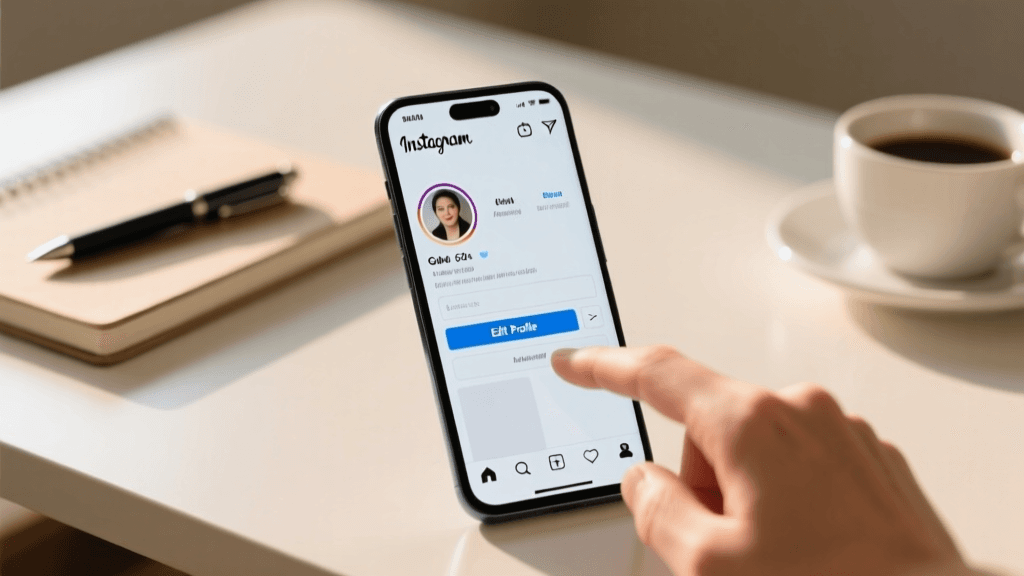
- Tap the Edit Profile Button: Located directly beneath your profile picture, follower metrics, and bio text, this prominent button is your gateway to all profile modifications. It is usually outlined or highlighted to make it easy to find.
- Locate the Bio Section: Scroll down slightly until you see the field labeled 'Bio.' Tap on the text area to bring up your Android keyboard. You will notice the character counter (0/150) appear, reminding you of your space limitations.
- Make Your Changes: Delete the old text, paste your new copy from your notes app, or type out your new ideas directly into the field. Take your time to ensure there are no typos, as your bio is a reflection of your professionalism.
- Save Your Changes: This step is crucial and often missed by new users. On Android, you must tap the blue checkmark icon in the top right corner of the screen to save your edits. If you simply hit the back button or swipe away, your changes will be discarded without a warning prompt.
Breaking Down the Anatomy of an Instagram Profile
To truly optimize your presence, you need to understand the difference between the various fields available in the Android editor. Each field serves a distinct purpose in the Instagram algorithm and user experience.
Name vs. Username
Your Name (up to 30 characters) is the bold text at the top of your profile. This field is highly searchable, meaning you should include relevant keywords here alongside your actual name or brand name. For example, if you are a real estate agent, use 'Jane Doe | Miami Real Estate' rather than just 'Jane Doe.' Your Username (also up to 30 characters) is your unique handle, preceded by the @ symbol. It forms your URL, is used for tagging, and is also searchable. Keep it as close to your brand name as possible for easy discovery.
The Bio Text Field
This is the core of your profile, strictly limited to 150 characters. This is where you state who you are, what you do, and what value you provide to your followers. It is the elevator pitch of your digital identity.
Contact Options and Action Buttons
Android allows you to add specific contact buttons, such as Email, Phone, or Business Address, without eating into your precious 150-character bio limit. Always utilize these if you are running a business or creator account to keep your bio text clean and focused on your value proposition. Additionally, depending on your account type, you can add action buttons for booking appointments, ordering food, or donating to causes. These are configured in a separate menu within the Edit Profile section.
Mastering Line Breaks on Android Devices
One of the most notorious issues Android users face when editing their Instagram bio is the disappearing line break. You carefully format your bio with neat, separated lines, hit save, and Instagram mashes it all into one unreadable, cluttered block of text. Here is how to conquer the line break issue on Android and maintain a clean aesthetic.
Method 1: The Notes App Strategy
The most reliable way to ensure your line breaks survive the upload process is to draft your bio outside of the Instagram app. Open your preferred Android notes app, such as Google Keep, Samsung Notes, or ColorNote. Type out your bio, using the return key to create distinct paragraphs and bullet points. Once you are happy with the formatting, highlight the text, copy it, open Instagram, paste it into the Bio field, and save. This method preserves the hidden carriage return characters that Instagram needs to recognize spacing.
Method 2: Navigating Keyboard Quirks
Different Android keyboards handle the Instagram text field differently due to how the app codes the input area. If you use Gboard (Google Keyboard), the return key sometimes transforms into a 'Next' or 'Done' button when the Instagram bio field is active, preventing you from creating a new line. To force a line break, try using a third-party keyboard like Microsoft SwiftKey, which often retains the return key functionality in single-line text fields. Alternatively, some users find success by typing a period, hitting return, and then deleting the period on the new line.
Method 3: Invisible Characters and Spacers
If copying and pasting still results in a text block, use an invisible character or a specific emoji as a line spacer. Alternatively, you can use dedicated line break generator websites that insert zero-width spaces to force Instagram to recognize the formatting. Simply search for 'Instagram line break generator' on your Android browser, type your text, and copy the result.
Optimizing Your Bio Text for Impact and SEO
With only 150 characters at your disposal, every single letter counts. Your bio needs to be concise, engaging, and discoverable by the Instagram search algorithm.
Define Your Value Proposition
What do followers get by following you? Are you sharing daily vegan recipes, in-depth tech reviews, or cinematic travel vlogs? State it clearly and immediately. Users should not have to guess what your page is about.
Use Emojis Strategically
Emojis act as visual bullet points, inject personality, and save valuable character space. Instead of writing 'Travel | Food | Lifestyle', use '✈️ Travel | 🍔 Food | ✨ Lifestyle'. However, do not overdo it; too many emojis can look spammy, reduce readability, and confuse screen readers used by visually impaired individuals.
Incorporate SEO Keywords
Instagram functions as a powerful visual search engine. Including niche-specific keywords in your bio text helps the algorithm categorize your account and surface it in relevant searches. If you are a fitness coach, ensure words like 'fitness', 'coach', 'workouts', or 'health' appear naturally in your text.
Include a Clear Call-to-Action (CTA)
Tell your visitors exactly what to do next. Use phrases like 'Read the latest blog post below,' 'Shop the new collection,' or 'Subscribe to my newsletter.' Pointing down to your link with an emoji (👇) is a proven psychological tactic to increase click-through rates and guide the user's eye.
If you are struggling to come up with the perfect phrasing or need help fitting your ideas into the character limit, our Instagram bio generator can help you brainstorm creative, SEO-friendly options tailored to your specific niche in seconds.
Advanced Keyword and Hashtag Strategies
While the main bio text is crucial, how you handle tags and hashtags on Android can further boost your profile's visibility.
Tagging Other Accounts
If you have a secondary business account, a podcast, or a brand partner, you can tag them directly in your bio using the @ symbol. This creates a clickable link that redirects users to that profile, creating a seamless network between your digital assets. To do this on Android, simply type '@' in the bio field and select the correct account from the dropdown menu that appears.
To Hashtag or Not to Hashtag?
Adding a branded hashtag to your bio (e.g., #JaneDoeTravels) encourages your followers to use it when they post content related to your brand or community. However, avoid using generic, high-volume hashtags like #love or #instagood in your bio. They do not improve your searchability and simply waste valuable character space. Keep it to one unique, branded hashtag if you choose to use one at all.
Adding, Managing, and Tracking Links on Android
The link in your bio is the most valuable real estate on your profile. It is often the only place you can direct your Instagram traffic to an external, clickable URL, making it vital for conversions and sales.
Adding a Single Link
In the Edit Profile menu, tap on 'Links' and then 'Add external link.' Paste your URL and provide a descriptive title. The title is what users will see if you have multiple links, but for a single link, it helps with accessibility and context. Ensure your URL includes 'https://' to guarantee it becomes clickable.
Using Link-in-Bio Tools
Since Instagram limits the prominence of external links, most creators and businesses use a link-in-bio tool. These tools generate a single, mobile-optimized landing page that houses multiple links to your website, store, YouTube channel, and other social platforms. This allows you to promote your latest video, your best-selling product, and your newsletter sign-up all at once without constantly changing your Instagram link.
Organizing Multiple Native Links
Instagram now allows you to add up to five external links directly to your profile. To manage these on Android, go to the Links section in the Edit Profile menu. You can reorder them by tapping and holding the drag handle next to each link. Ensure your most important, highest-converting link is at the very top, as it will be the most visible to users who do not expand the list.
Tracking Your Link Performance
When editing your bio link on Android, consider using URLs with UTM parameters. This allows you to track exactly how much traffic and how many sales are generated specifically from your Instagram bio, separate from your general website traffic. Use a URL builder to create these tracking links before pasting them into your Android device.
Inspiring Bio Examples for Android Users
Seeing successful bios in action can spark your creativity and show you how to format your text effectively. Here are a few structural examples you can easily copy, paste, and edit on your Android device.
For a clean, stripped-back look that relies on typography and negative space rather than clutter, explore our collection of minimalist bio ideas.
For visually driven creators who want their profile to match their curated grid, our aesthetic bio ideas offer beautiful formatting, unique layouts, and cohesive emoji use.
Example 1: The E-commerce Brand
🌿 Sustainable skincare for glowing skin
🐰 Cruelty-free & Vegan
📦 Free shipping on orders over $50
👇 Shop our new summer collection
Example 2: The Freelance Creative
📸 Freelance Photographer based in Austin, TX
🎨 Specializing in brand & portrait photography
📩 Booking inquiries: email below
👇 View my portfolio
Example 3: The Personal Lifestyle Creator
✨ Romanticizing the everyday
☕️ Coffee addict & book lover
🎙️ Host of the Daily Spark podcast
👇 Listen to the latest episode
Example 4: The Local Service Business
🔧 Trusted Plumbers in Chicago & Suburbs
⏰ 24/7 Emergency Services Available
⭐ Licensed, Bonded & Insured
👇 Book a service call today
Example 5: The Tech Educator
💻 Demystifying coding for beginners
🚀 Python, JavaScript & Web Dev tips
🎓 Join 50k+ students learning to code
👇 Grab my free starter guide
Troubleshooting Common Android Editing Issues
Even with a perfect strategy, technical glitches can occur. Here is how to troubleshoot common Android-specific bio editing problems quickly and efficiently.
Issue: The App Crashes When Pasting Text
Solution: Instagram sometimes struggles with large blocks of text copied from rich-text editors or websites that contain hidden HTML formatting codes. If the app crashes or freezes, paste the text into a plain-text editor first (like a basic SMS draft or a simple notes app) to strip out the hidden formatting, then copy and paste it into Instagram.
Issue: Changes Are Not Saving or Reverting
Solution: This usually happens due to a poor internet connection or a temporary server-side block from Instagram if you have edited your profile too many times in a short period (a spam-prevention measure). Wait 24 hours before trying again, and ensure you are on a stable Wi-Fi connection rather than a fluctuating cellular network.
Issue: The Link is Not Clickable
Solution: Ensure you are pasting the link into the dedicated 'Links' section, not the main 150-character bio text field. URLs typed directly into the bio text field are not clickable, cannot be tracked, and cannot be easily copied by users on mobile devices.
Issue: Special Characters Display as Boxes
Solution: This occurs when using unsupported custom fonts generated by third-party apps. Instagram supports standard Unicode characters. If you use a font generator, test the bio on an older device or ask a friend with a different operating system to view your profile to ensure it remains accessible and readable for all your followers.
Issue: Action Buttons Not Showing Up
Solution: Action buttons (like 'Book Now' or 'Order Food') require your account to be set to a Professional or Business account. If you are on a personal account, switch to a professional account in the settings menu to unlock these features. Additionally, ensure you have linked a valid Facebook Page if required by the specific button type.
Frequently Asked Questions (FAQ)
Can I use custom fonts in my Instagram bio on Android?
Yes, you can use third-party websites to generate custom Unicode fonts and paste them into your Android bio. However, use them sparingly and strategically. Screen readers used by visually impaired individuals cannot read custom fonts correctly, which harms accessibility and excludes a portion of your audience. Furthermore, some older Android devices may not render them properly, resulting in empty boxes.
Why does Instagram keep removing my line breaks?
Instagram treats the bio field as a single-line text input on a code level to prevent excessive vertical spacing and spammy layouts. Using the notes app method, specific keyboard workarounds, or invisible spacer characters is the best and most reliable workaround for Android users.
How often should I update my Instagram bio?
You should update your bio whenever you have a new product launch, a change in your business focus, a new lead magnet to promote, or a seasonal campaign. For evergreen personal brands, a quarterly review is sufficient to ensure your keywords, CTAs, and links remain relevant and optimized.
Can I schedule bio text changes on Android?
Currently, Instagram does not natively support scheduling bio text changes. You must manually edit and save the bio through the mobile app or desktop site. However, some third-party social media management tools allow you to schedule profile picture and bio link updates if you connect your business account via the official API.
What is the exact character limit for all profile fields?
The Name and Username fields are limited to 30 characters each. The main Bio text field is limited to 150 characters. The external link URL field allows up to 2,048 characters, though shorter, tracked links are highly recommended for aesthetics and user trust.
Conclusion: Perfecting Your Android Profile
Editing your Instagram bio on Android does not have to be a frustrating or confusing experience. By understanding the nuances of the Android interface, mastering the line break workarounds, and strategically utilizing your 150 characters, you can create a compelling digital storefront that converts casual scrollers into loyal followers and paying customers. Remember to leverage your Name field for SEO, use emojis to break up text visually, and always include a clear, compelling call-to-action pointing to your optimized link-in-bio.
Whether you are refining your personal brand, launching a new business, or scaling an existing enterprise, your bio is a living, breathing element of your social media strategy. Test different formats, monitor your link click-through rates, and do not be afraid to iterate based on what your audience responds to. If you ever need fresh inspiration, a quick template, or automated assistance, bookmark our bio generator tool and explore our extensive library of profile guides. Now, open up your Android app, tap that Edit Profile button, and start crafting the perfect bio today.